
Borders play a key role in structuring data, making tables easier to read, and organizing information visually in Excel. Whether you’re building reports, dashboards, or printable layouts, clean borders help separate sections and guide the reader’s eye.
If you’re wondering why anyone would need a shortcut for this, it might be because you don’t use Excel that often – or maybe your work doesn’t require this type of formatting. But for someone who does it frequently, repeating this process manually can become tedious and time-consuming – time that could be better spent improving the actual quality of the work.
This article explores three ways to apply borders in Excel – including a powerful shortcut with QuickCel that goes beyond the basics, letting you toggle between solid and dotted outlines in seconds, with no manual drawing required.
1) Using the Ribbon
The most common way to apply borders is through the Home tab in Excel’s Ribbon. This method gives access to standard border options, such as solid outlines, top or bottom borders, and more.
✅ How it works:
- Select the cells you want to outline
- Go to Home → Font group → Click the Borders icon
- Choose Outside Borders or another option from the dropdown
- To apply a dotted or white border, you need to:
- Click “More Borders…”
- Manually select the line style (dotted) and/or color (e.g., white)
- Then use the pencil tool to draw the border on each side of the cell
⚠️ Drawbacks:
- Requires multiple mouse clicks
- Slower for repeated use or batch formatting
- This process is time-consuming and prone to mistakes – it’s easy to apply the wrong style to the wrong edge and often requires undoing and retrying
- 🕒 Time required: ~10–15 seconds per selection
💡 If you don’t apply borders very often, this method might be enough. But for users who need dotted lines or light styling frequently, the manual process becomes frustrating fast.
2) Using Alt + H + B
This keyboard shortcut speeds up access to basic border styles by eliminating the need to navigate through the Ribbon – at least partially. But its capabilities are limited, and anything beyond standard solid lines still requires additional formatting steps.
✅ How it works:
- Select the target cells
- Press Alt + H + B
- Then press:
- O for Outside Borders
- T for Top Border
- B for Bottom Border, etc.
- If you want to apply a different line style or color, such as dotted or white border, you’ll need to open the full Borders menu using “More Borders…” – and at this point, it’s necessary to use the mouse to manually choose the border style and/or color you want to apply.
⚠️ Drawbacks:
- Covers only basic solid border styles by default
- This is slow, imprecise, and error-prone – it’s easy to misclick or apply the border to the wrong edge, forcing you to undo and repeat the process
- 🕒 Time required: ~6–10 seconds per selection
While faster than using the Ribbon, this method still becomes frustrating if you need anything beyond the basics – especially when applying style-specific borders multiple times.
3) Using QuickCel: One Shortcut, Style Included
QuickCel introduces a streamlined, menu-free solution to outlining cells – with added flexibility. Press Ctrl + Shift + 7 to cycle through four professional border styles: solid, dotted, white, and none. This is especially useful for financial models, dashboards, or print layouts that require visual structure without clutter.
✅ How it works:
Ctrl + Shift + 7 cycles through:
- Solid border
- Dotted border
- White border (great for clean print layouts or hidden separation)
- No border (removes all)
➡️ Then the cycle starts again
| Before | Presses | After |
| No border | Ctrl + Shift + 7 | Solid border |
| Solid border | (press again) | Dotted border |
| Dotted border | (press again) | White border |
| White border | (press again) | No border (reset) |
✅ Key Benefits:
- Instant execution: ~0 seconds
- Eliminates manual drawing steps
- Works on multiple ranges at once
- Perfect for alternating visual styles or separating data types
- Easily apply dotted or white borders without using menus or the pencil tool
- Avoids errors from manual clicks and speeds up formatting by 10x
- Keeps your layouts consistent and clean
This shortcut is ideal for high-volume formatting tasks – no more digging through menus, selecting line styles, or drawing by hand. Just press, cycle, done.
4) What Else Can You Do with QuickCel?
QuickCel goes far beyond borders. It’s packed with shortcuts that simplify formatting, calculations, and layout tasks – all optimized for power users.
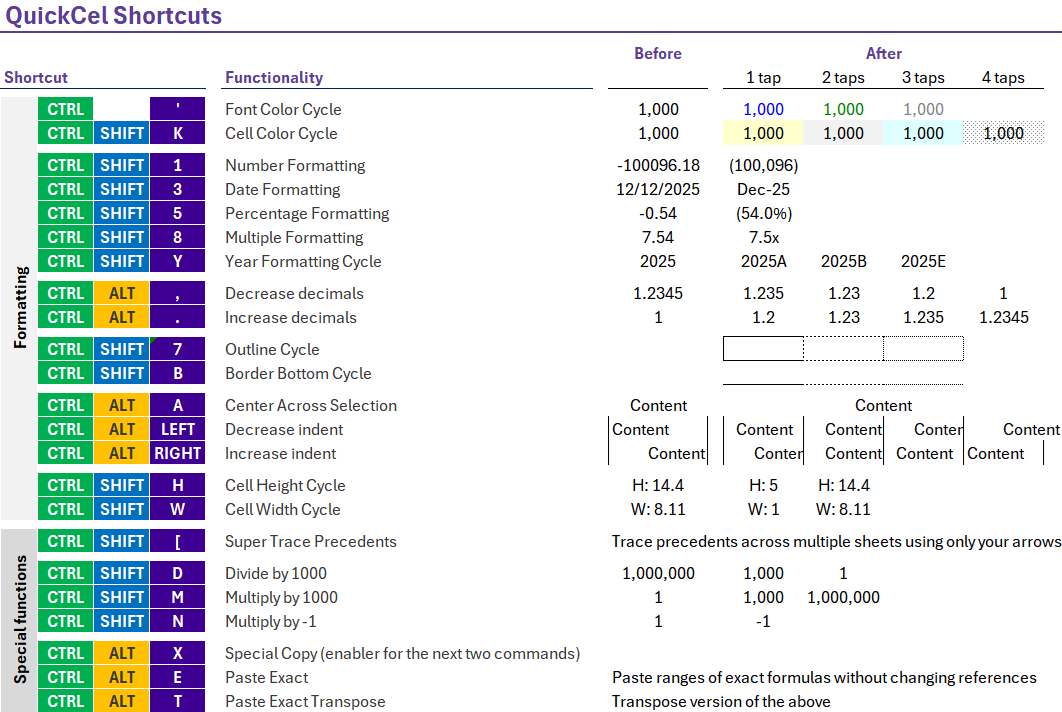
With QuickCel, you skip the clicks, the menus, the manual cleanup – and go straight to formatting that works.
QuickCel users save 100+ hours per year, just by eliminating repetitive formatting tasks.
5) Try It for Yourself
Want to apply borders in Excel – including dotted and white – without navigating menus or drawing by hand? Try Ctrl + Shift + 7 with QuickCel and experience how smooth and professional Excel formatting can feel.
Learn all about QuickCel’s features on our website: www.quickcel.software
👉 Download QuickCel for free and start outlining faster, cleaner, and smarter.