
When you’re dealing with complex financial models or large spreadsheets, finding the source of an error – the root cause – is often the hardest part of the job. You need to know exactly which cells feed into a formula, but manually clicking through references can quickly become a nightmare of switching tabs and endless scrolling.
In this article, we’ll explore the standard Excel method for tracing precedents and then show you how QuickCel transforms this essential but painful task into a lightning-fast process.
1) The Standard Way: Tracing Direct Precedents (Ctrl + [)
Instead of manually relying on the double-click method, which only highlights the cells, this shortcut selects them for immediate action or visualization.
The process is simple:
- Select the cell containing the formula you wish to analyze (e.g., a cell showing profit, total sales, or a quarterly sum).
- Press Ctrl + [ (Control key and the left bracket key).
The screen will jump and select all the direct precedents of that formula.
Example: If you’re calculating Profit by subtracting Cost ($25) from Revenue ($100), the profit cell contains the formula. Pressing Ctrl + [ on the profit cell will automatically select the Revenue cell and the Cost cell. It shows you precisely how you got that individual value.
⚠️ Drawbacks in Complex Models:
- Only Direct Precedents: It only shows the cells one level above the current formula. To go deeper, you must manually repeat the shortcut on the new cells.
- Poor Navigation: If the precedent is on another sheet, Excel dumps you there, and getting back or moving to the next precedent is a manual effort, requiring constant switching and losing your place.
- Barely Helps: As the transcription notes: “It shows precedence but barely helps in complex models.” When you’re facing an error in a spreadsheet with over a thousand rows, this method is too slow and inefficient.
2) The QuickCel Solution: Super Trace Precedence
If you need to trace the logic of a formula instantly and seamlessly across sheets and multiple levels, you need Super Trace Precedence.
Super Trace Precedence is like Ctrl + [ on steroids.
You just need to use one powerful shortcut:
Ctrl + Shift + [ (Control + Shift + Open Bracket)
✅ How it Works:
- Select the cell with the formula you need to investigate.
- Press
Ctrl + Shift + [. A dedicated navigation panel appears. - You can now move through all precedents of the formula using your keyboard arrows (up/down).
- As you go deeper into the formula’s hierarchy, the screen automatically jumps directly to each reference cell, updating live.
4) What Else Can You Do with QuickCel?
QuickCel offers dozens of formatting, layout, and navigation shortcuts to help you clean up spreadsheets without touching your mouse. Check out the full range of Excel-enhancing shortcuts:
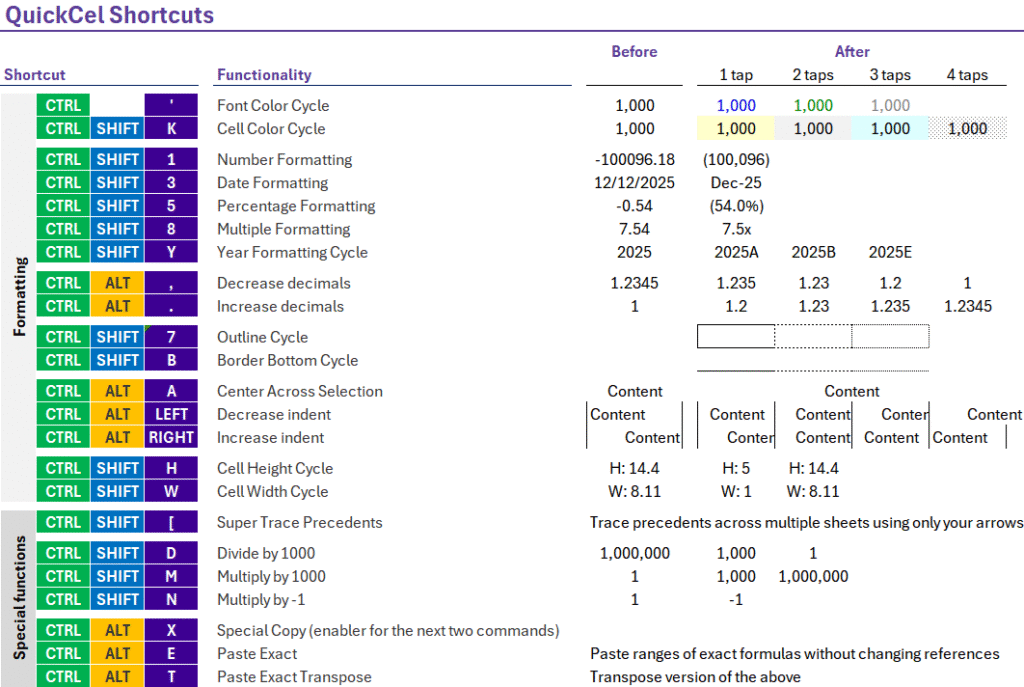
Every shortcut is designed to eliminate manual steps and repetitive clicks – giving power users back their time. QuickCel users report saving 100+ hours per year, simply by replacing slow formatting processes with intelligent, instant commands.
5)Try It for Yourself
Why not try this Powerful Shortcut today and experience the difference?
Learn all about QuickCel’s features on our website: www.quickcel.software
👉 Download QuickCel for free now and work smarter – not harder.