
You’ve been there. You have a perfectly calculated block of formulas – maybe a complex mix of Variance Actual to Previous Year and Actual to Budget. You need to move that entire block to a new spot in your spreadsheet, but here’s the catch: you do not want the cell references to update.
Normally, when you copy a formula, Excel’s default behavior is to update the relative references, which is usually exactly what you need. But there are those specific cases where you want to keep the original references intact. It’s not always a matter of using the Dollar Sign ($) to fully fix them, especially when you have a mix of relative and absolute referencing.
If you just copy and paste, Excel updates the references and your results get completely messed up. Let’s look at the two main ways to solve this – one that’s a serious time-sink and one that is a smart, hidden trick!
1) Copying From the Formula Bar
The most straightforward, but incredibly time-consuming, way is to copy the formula text by text, cell by cell.
- Enter Edit Mode: Select the cell containing the formula you want to copy. You can press F2 or click inside the Formula Bar.
- Copy the Formula Text: Copy the text of the formula (e.g.,
=(C4-B4)/B4). - Paste in the New Cell: Go to the destination cell, enter Edit Mode (F2 or Formula Bar), and paste the formula.
- Finish: Press Enter to calculate the result.
The Verdict: This is fine for one cell. However, if you have a lot of cells, or different sets of formulas, this becomes quite time-consuming. It also carries a high risk of error, as you might forget to do it for every variation and accidentally copy one correct formula across a whole range, changing the numbers.
2) Find and Replace With a Temporary Placeholder
This is the trick you need to copy a whole set of formulas but still keep the original cell reference link. The idea is simple: temporarily turn the formulas into plain text so Excel can’t update them, then copy, and turn them back!
Step 1: Deactivate the Formulas
- Highlight the Area: Select the entire area of formulas you want to copy.
- Open Find and Replace: Press Ctrl+H (or go to Home > Find and Select > Replace).
- Swap the Equal Sign (
=): We are going to look for the equal sign and replace it with a unique text string that is not in your file.- Find what:
= - Replace with:
#(Use any random, unique text you are sure doesn’t exist. Of course your spreadsheet has no #REFs, right?)
- Find what:
- Execute: Click Replace All.
This action replaces the equal sign, turning your formulas into simple text strings.
Step 2: Copy and Reactivate
- Copy and Paste: Now, copy the entire range of cells. Since they are just text, their internal references will not change. Paste them wherever you need them.
- Go Back to Find and Replace: Press Ctrl+H again.
- Swap Back: Now, reverse the replacement.
- Find what:
#(The unique string you used) - Replace with:
=
- Find what:
- Execute: Click Replace All.
When you click Replace All, the equal signs are restored, and you get all the original formulas back in the new location, still maintaining the original references!
3) Using QuickCel: Copy and Paste Instantly with One Shortcut ⚡
The smartest and fastest way to copy an entire set of formulas while keeping the original cell references is to use QuickCel. It bypasses the entire Find and Replace process, achieving the same result instantly.
Here’s how to copy formulas without changing references in seconds:
- To Copy: Select the cells you want to copy and press the QuickCel shortcut: Ctrl + Alt + X.
- To Paste: Go to the destination cell (the top-left cell of the area where you want to paste) and press the QuickCel paste shortcut: Ctrl + Alt + E.
That’s it!
With just two simple keyboard shortcuts, you copy and paste without changing any cell references, eliminating the need to manually enter the Formula Bar or perform the temporary = substitution. It’s infinitely faster than the other methods.
4) What Else Can You Do with QuickCel?
QuickCel offers dozens of formatting, layout, and navigation shortcuts to help you clean up spreadsheets without touching your mouse. Check out the full range of Excel-enhancing shortcuts:
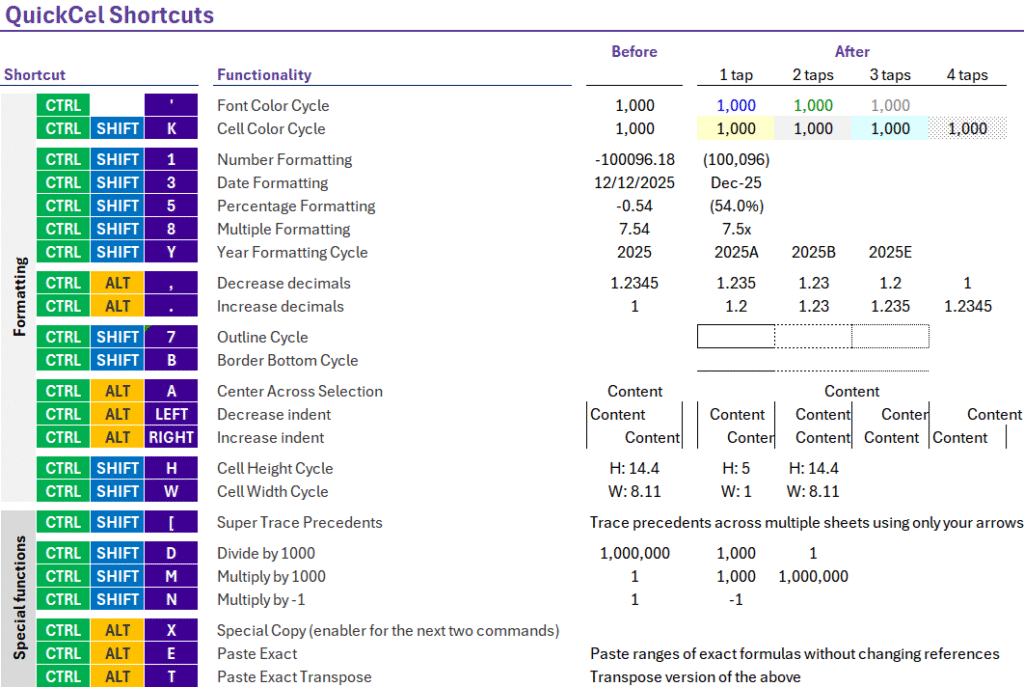
Every shortcut is designed to eliminate manual steps and repetitive clicks – giving power users back their time. QuickCel users report saving 100+ hours per year, simply by replacing slow formatting processes with intelligent, instant commands.
5)Try It for Yourself
Why not try this Powerful Shortcut today and experience the difference?
Learn all about QuickCel’s features on our website: www.quickcel.software
👉 Download QuickCel for free now and work smarter – not harder.